
ONE Platform: Structured Notes
User Guide - Getting Started
Structured Notes
The one of most favorable customizations is the Structured Notes. We have Fact Sheets, Statements and more, and in fact the platform has all abilities to manage any type of submission forms and documents, from production catalogs to traveling tickets.
But structured products need a very limited time schedule to make the security notes, approve it and then file, so the customized UI and workflows are the core of the solution.
Below you can find more details for the security notes customization to generate notes and then fill it by Bank’ requests and with possibly close integration to the client's systems and infrastructure. With the security note type, term, underliers, and other parameters such as barrier / level, our platform generates the security note with all disclaimers, indices, illustrative examples, charts, and even fact sheets.
Dashboard as central part of the user activities
Basically, every user has its’ own dashboard view after the login; and it able to customize it easily via mouse, by adding necessary diagrams or tables, including but not limited to:
- The current tasks he should do, according to permissions and roles;
- The active securities;
- The statistical metrics.
We’re offering default tabs for the users to let them see basic information out of the box without customization.
The “Statistics” tab represents a general statistic information about Securities available in the system:
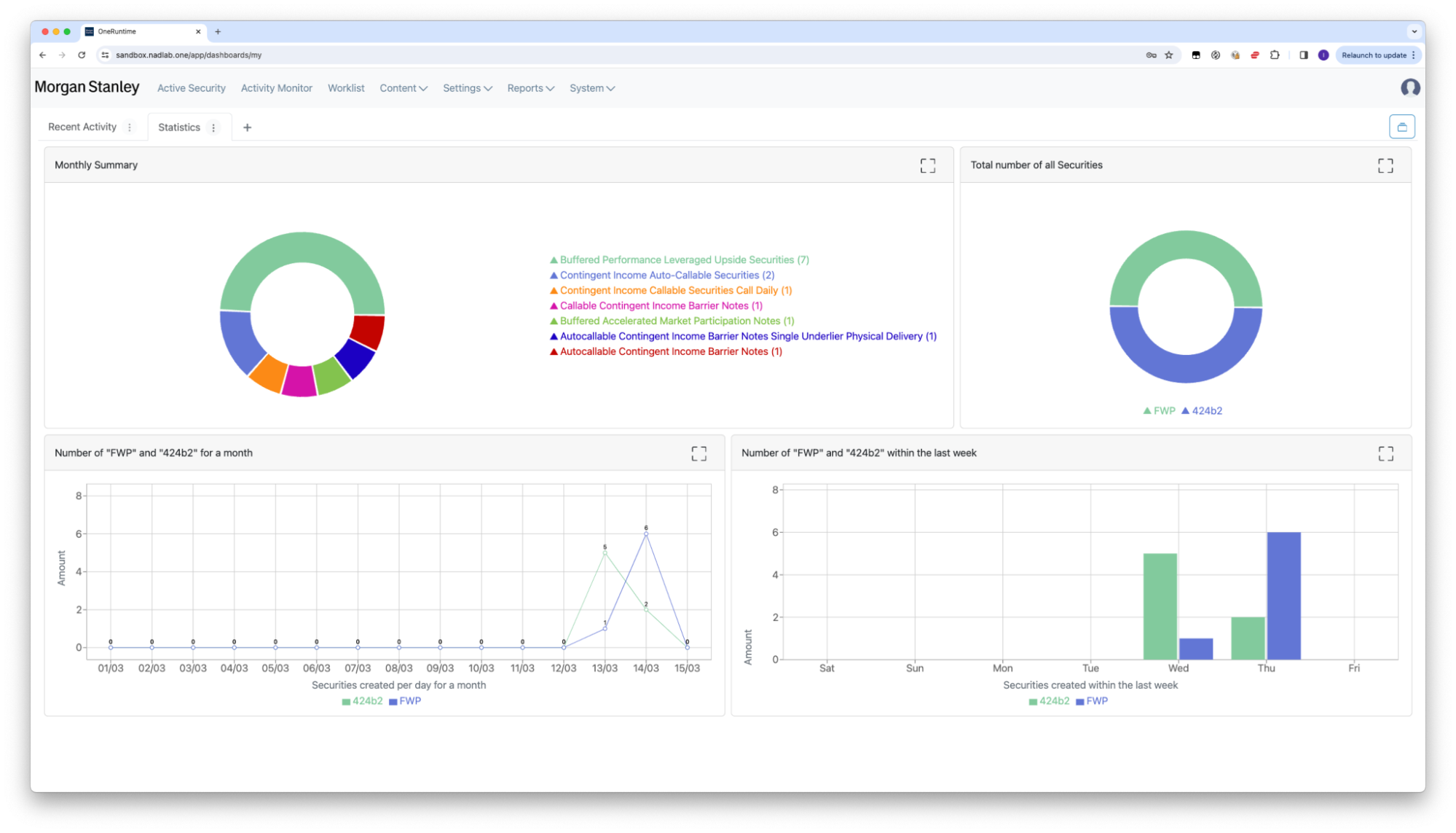
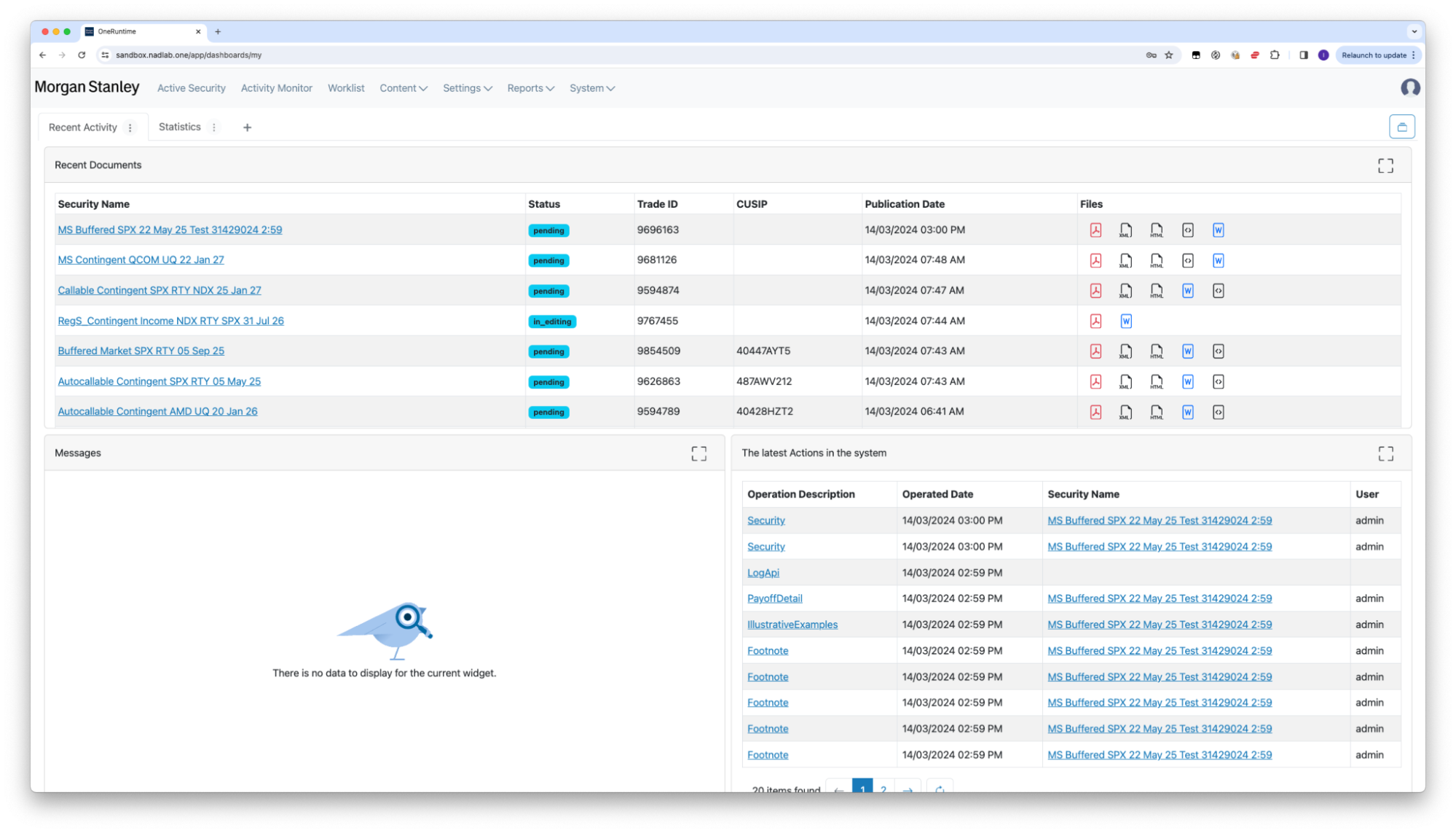
The “Activity” tab collects widgets for the operation activity with Security objects. Users can navigate to the interested Securities/Documents/Content History elements directly from this Dashboard.
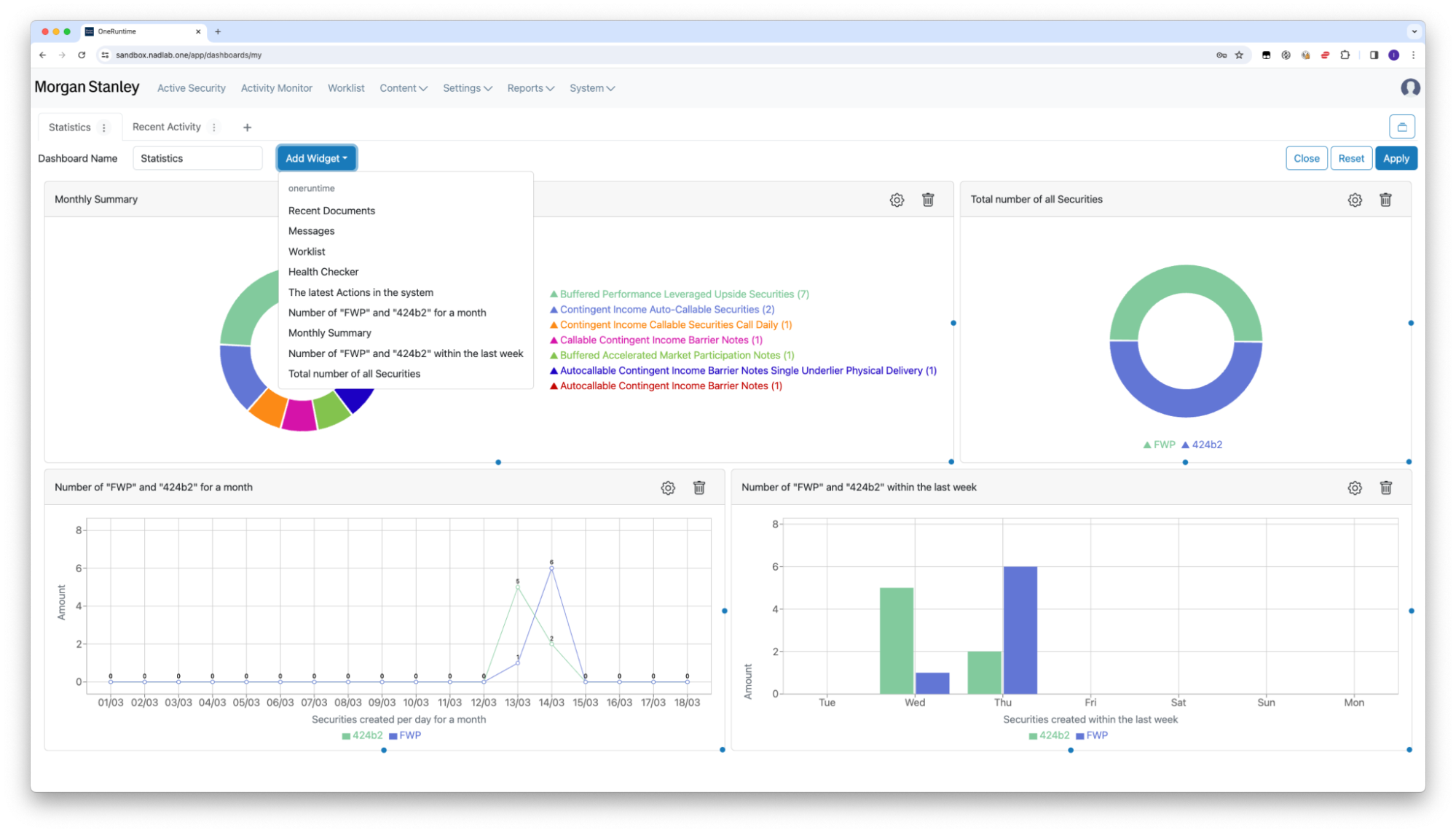
Dashboard customization by users
Basically, it is a good idea for the users to configure their own views.
Users, roles, and individual role views
As we noted above, users see the only allowed content; so approvers work with unapproved securities, content managers work with security contents, managers have metrics and reports and so on.
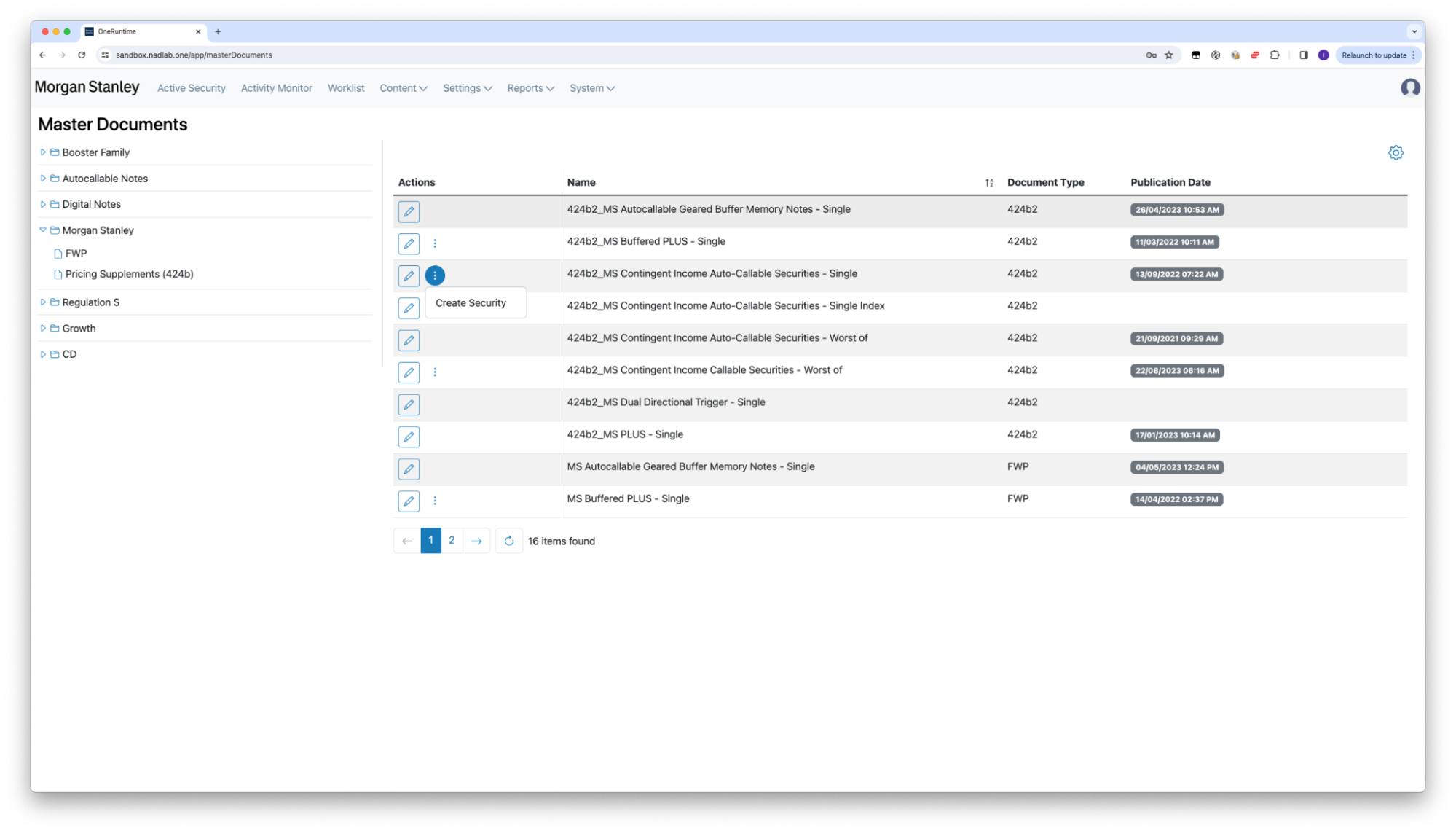
Master templates concept
Basically, every security has a lot of texts, charts, formulas and so on. Once we are creating new security, we either need to type all texts, or we need to copy it from somewhere. So, we offer the concept named “master template”. It contains all texts to be used as templates, with direct references to business-specific variables.
Business logic and scripts
Evey “template” means
- Visual part, as MS Word or HTML file with markup;
- Script-based logic to fetch data from the database, format it and prepare for visualization.
- Extra assets like images, charts, bar codes, etc.
Technically, business logic are defined in script languages (Groovy, Python and Javascript), so clients’ IT departments can be involved with business logic and reports creation. We offer an open solution.
Step-by-Step
New security: JSON
Actually, in our demo, we decided to avoid direct creation of the security in the UI. Instead, we expect the Bank will send us JSON with all essential data to be used for security generation, including type, “master template” reference, and all necessary parameters, like underliers and indices, via our Integration API.
This way provides centralized management of the securities at the Bank side, without necessity of the data copying by hand with the typo mistakes and referred problems.
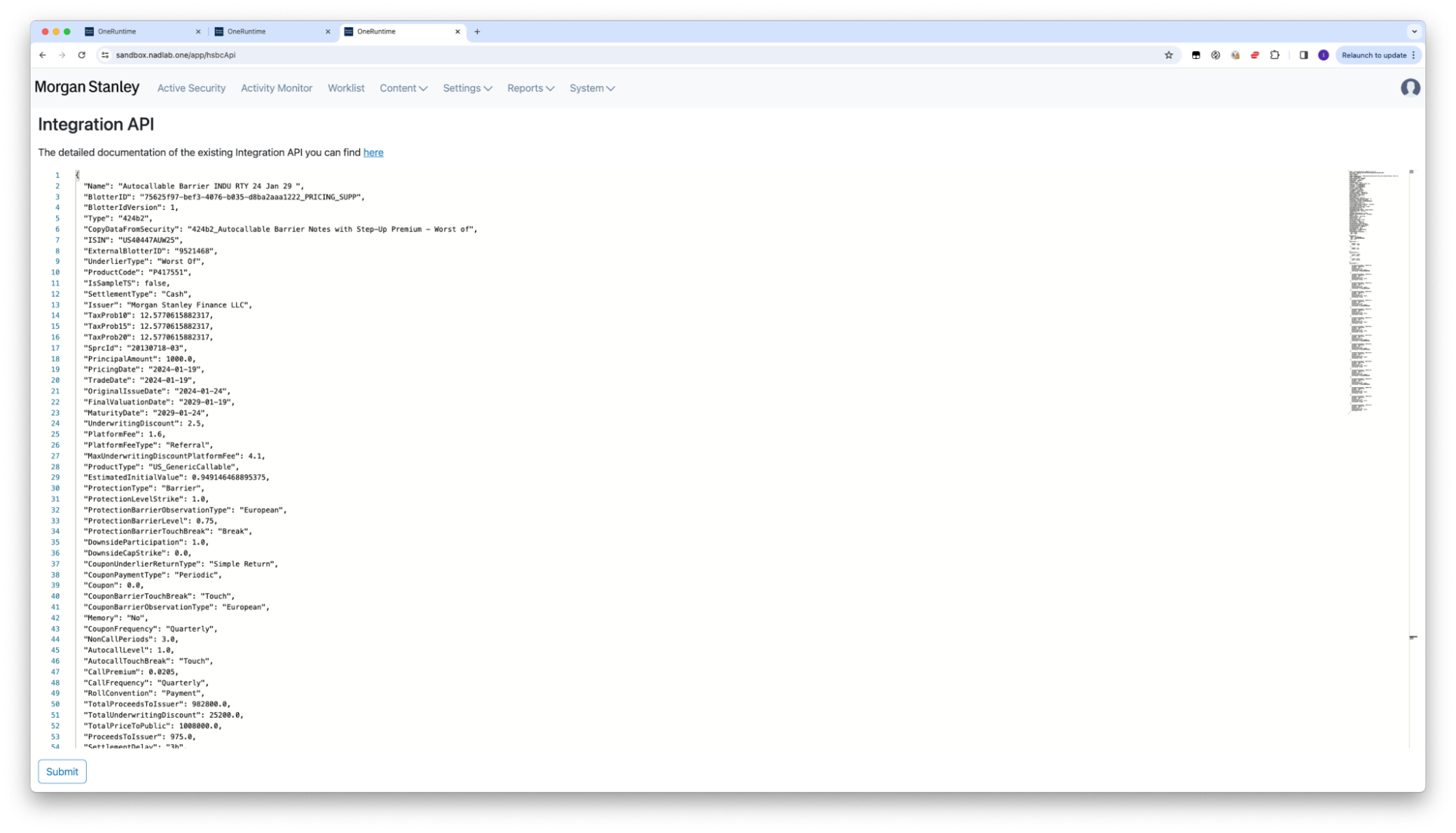
Of course, once the new security has been created, content editors manage the whole content of the security with the possibility to change any data (with related recomputations on the fly).
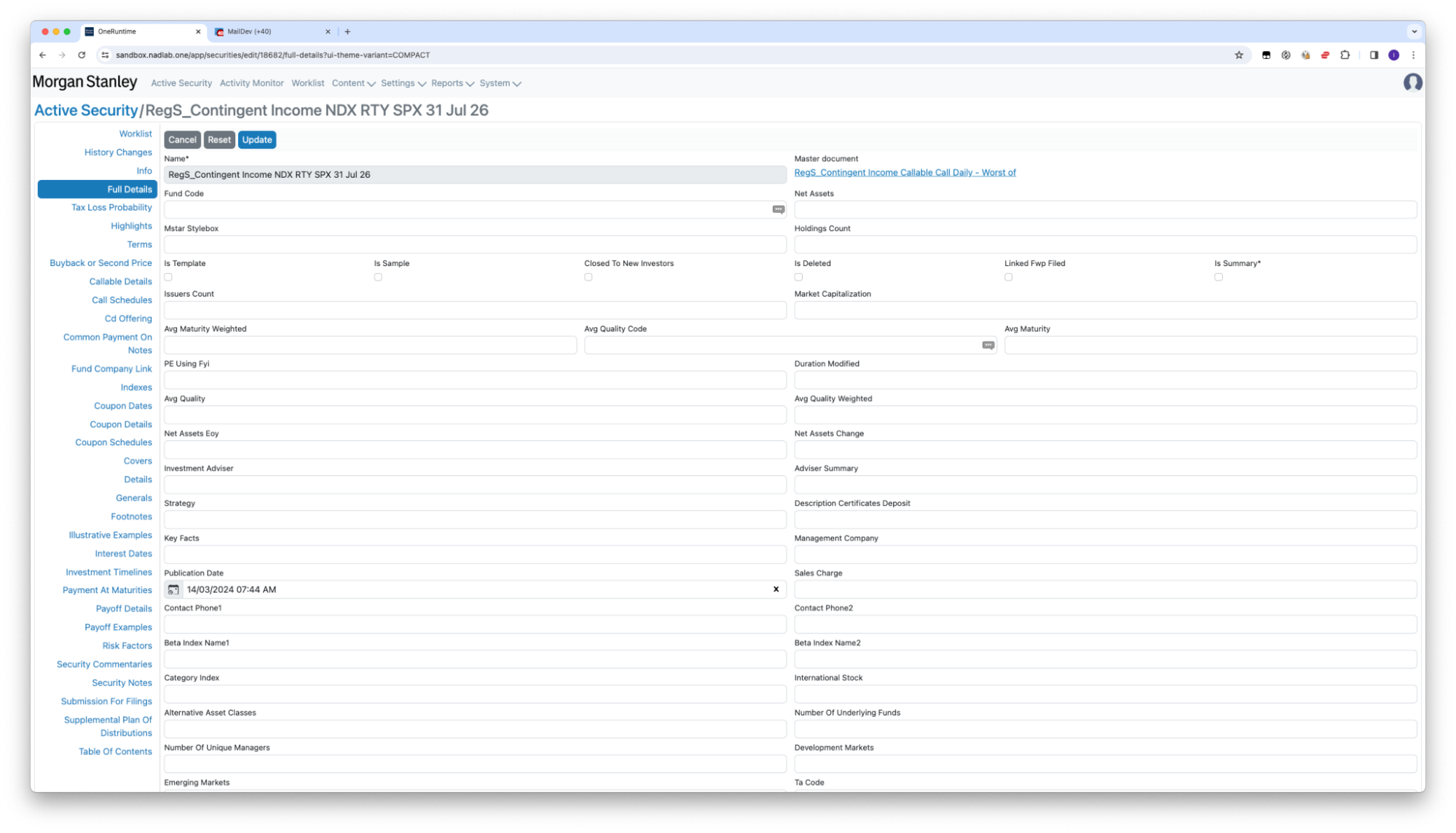
But for such cases, the manual UI is necessary, for example for demo and analytic purposes. In this case we have an UI to type security directly, with caution it is a “backup” way.
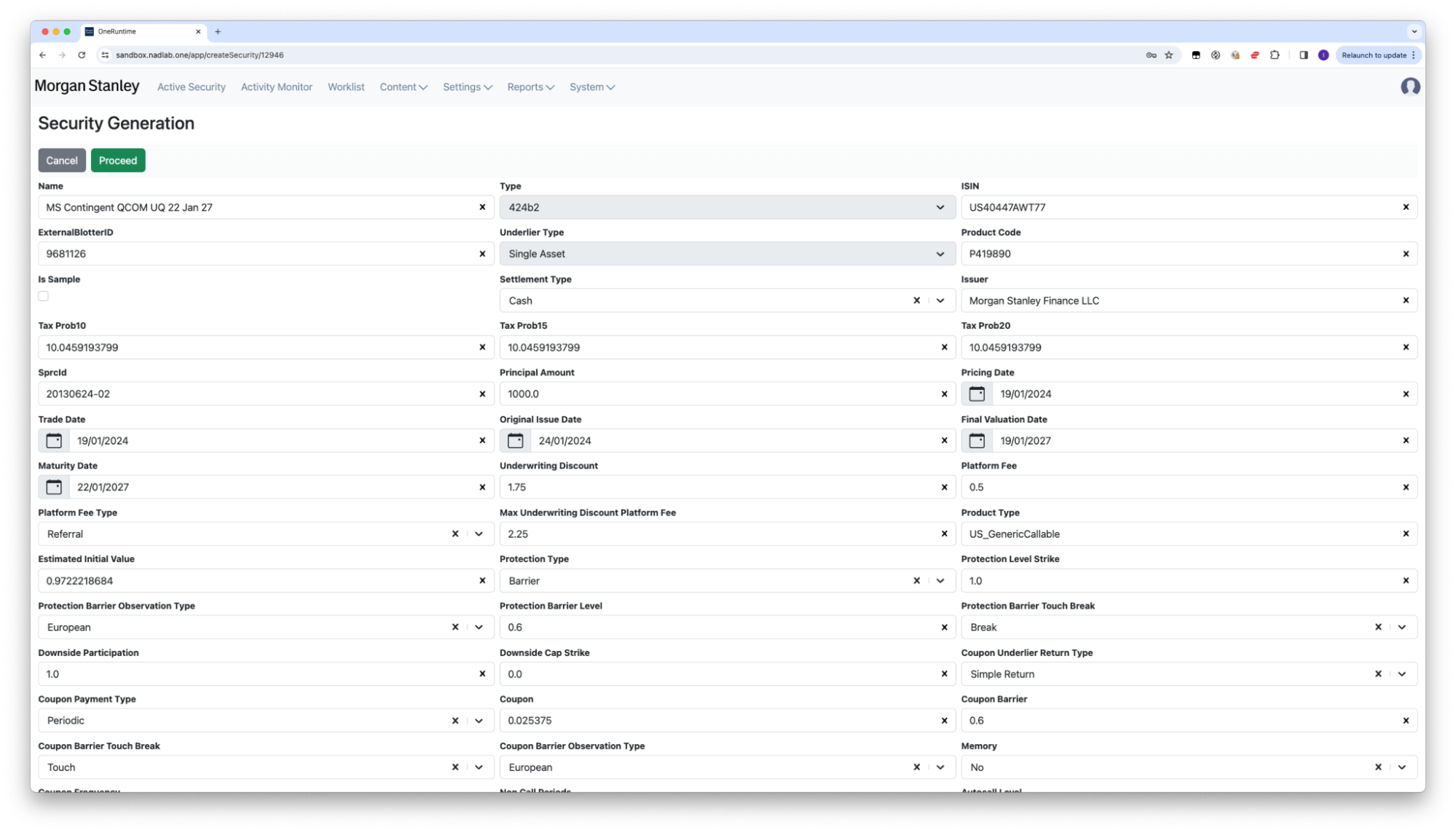
Practically, it is the same as in JSON but in UI form.
Workflow: approvals
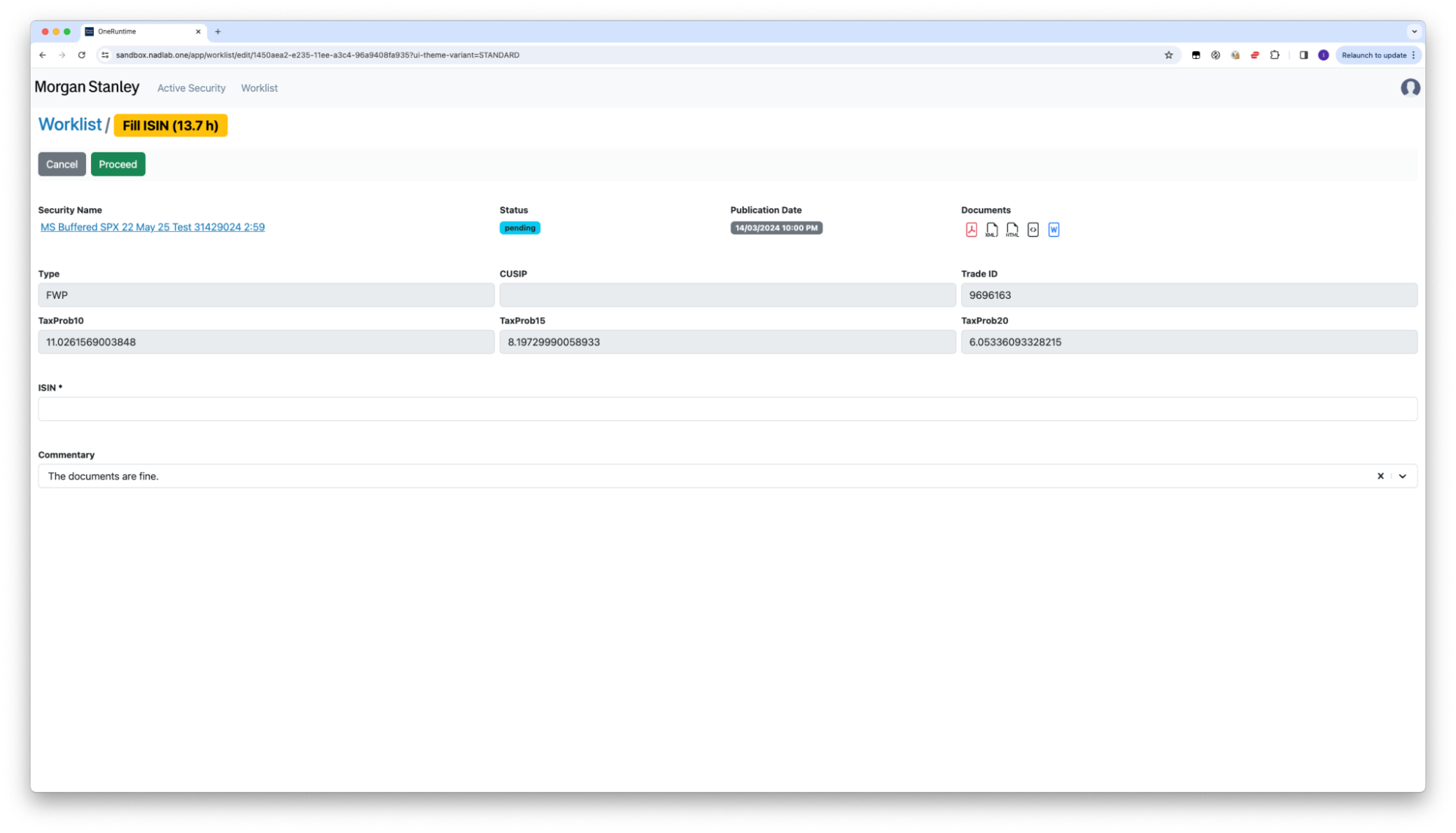
Once the security is available in the system, it should be passed through the workflow, with several steps to review and approve.
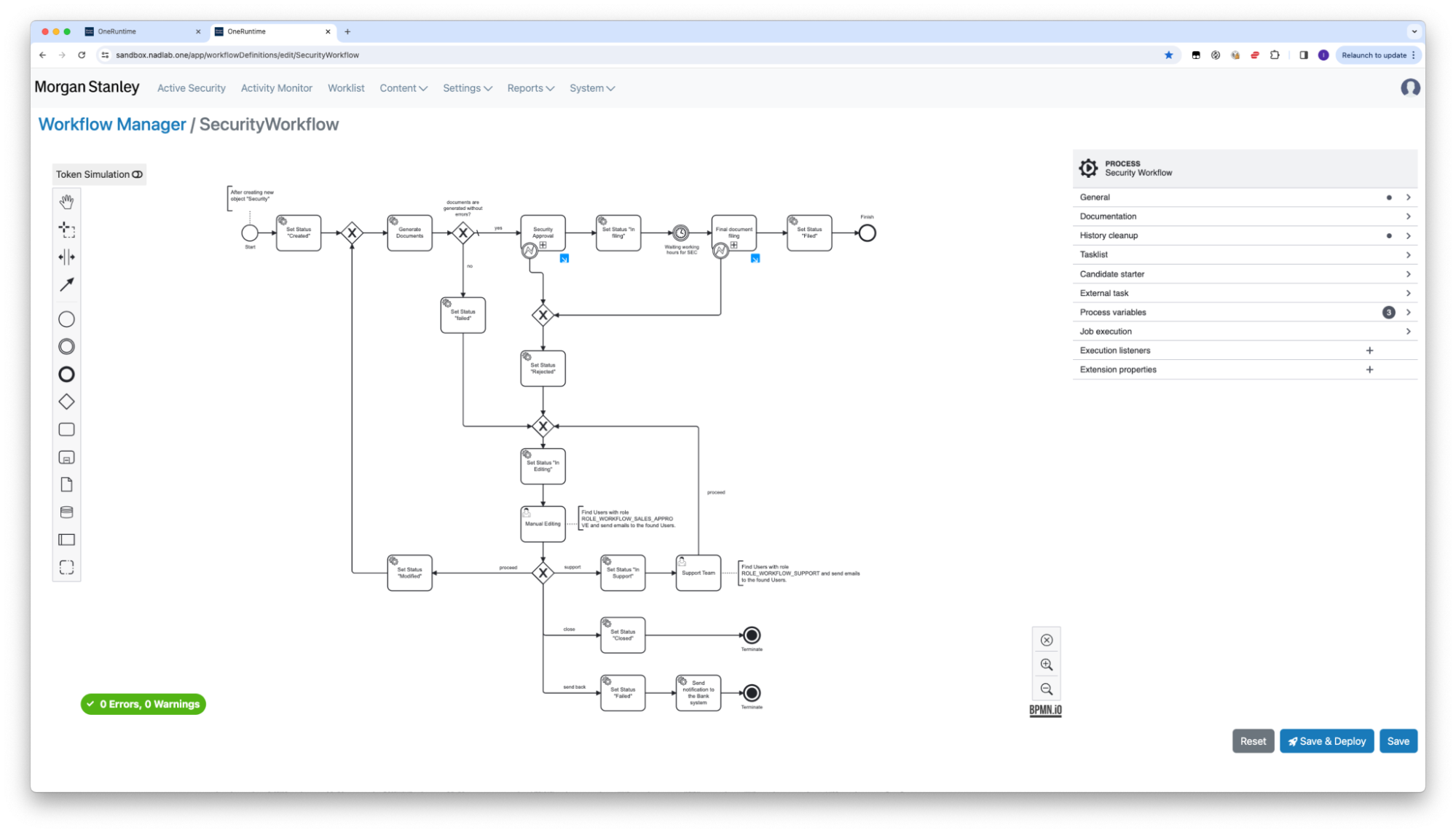
In fact, the approvals are part of our Users/Roles separation, so to make approvals user should have appropriate permission. By default, we have "Manual approver" and "manual legasl" roles out of the box to support approval processes from both operational, tax, and legal departments. Every role has its' owen Dashboard have optimized for the typical operations.
Emails as reflection of the workflow steps
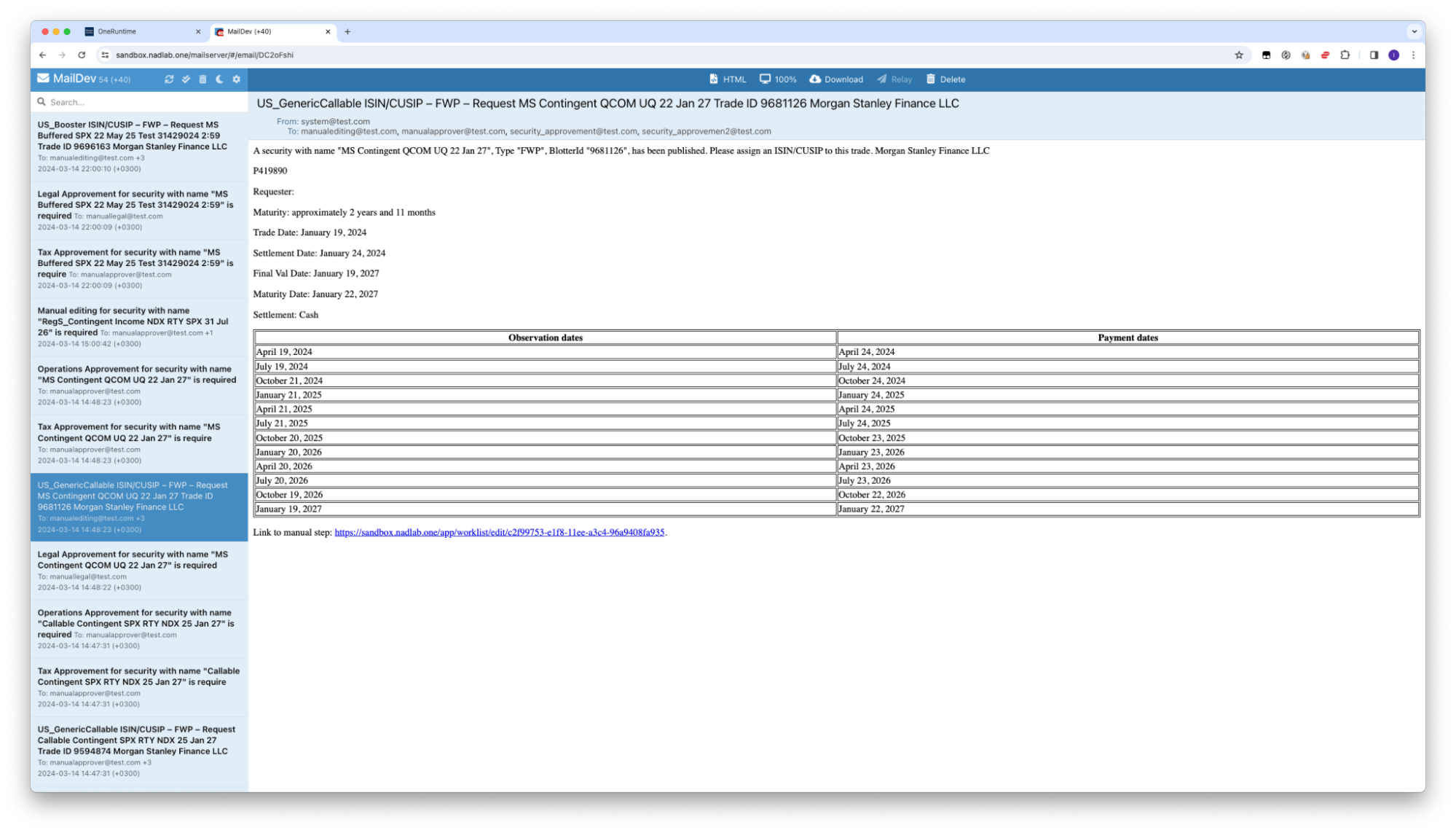
Every step sends customizable emails to all users who might need to know about the change, according to their roles, so all workflow steps inflict the immediate notifications. At praqctice it means every Approver has email notifications being reflected to its' opersolaal activities and the Approver do not need toi refresh pages in UI continuously.
Approved: ready for filing
The final step of the workflow (among rejections, cancellations, updates and other cases) is “Ready for filing”. It means, we have the content for GoFiler ready, it has been generated and has been checked and approved by all users.
We are glad to offer automatic SEC submission without manual steps and even without GoFiler as a part of our platform.
.