
ONE Platform: Structured Notes
Integration API - Getting Started
In this document, we’ll show how to make first steps: create and update securities and retrieve PDFs back. To do so, you need curl, Postman or your favorite HTTP Client library; all examples are adopted for curl command line utility as it is the most easy way. To see the list of the available “master templates”, Indexes and other stuff please use direct access to our Web UI. We’ll operate with “FS Auto Callable Contingent Interest Notes - Single” master template as it is a very simple fact sheet example.
The full JSON is looks like this:
{
  "CopyDataFromSecurity": "FS Auto Callable Contingent Interest Notes - Single",
  "ISIN": "1148133TNK71",
  "ExternalBlotterId": "2986824",

  "Issuer": "JPMorgan USA Inc.",
  "UnderlierType": "Single Asset",
  "Underlyings": [
    {
      "Ticker": "MQUSLVA"
    }
  ],
  "PrincipalAmount": 1000.0,
  "PricingDate": "2023-01-13",
  "OriginalIssueDate": "2022-12-15",
  "FinalValuationDate": "2024-07-15",
  "MaturityDate": "2024-07-18",
  "FinalCustomer": "JP MORGAN CHASE BANK 0187",
  "ProtectionBarrierLevel": 0.6,
  "CouponBarrier": 60,
  "CouponFrequency": "Quarterly",
  "IsCallable": "No",
  "Name": "Auto Callable Contingent Interest Notes3",
  "BlotterID": "1e1tbn24-9647-42f1-8d52-c6f7fd42hw94_FACTSHEET",
  "BlotterIdVersion": 1,
  "Type": "FWP",
  "Coupon":0.0375
}
Here we see mandatory fields:
  "ISIN": "3148133TNK71",
  "Issuer": "JPMorgan USA Inc.",
  "PricingDate": "2023-01-13",
  "MaturityDate": "2024-07-18",
  "OriginalIssueDate": "2022-12-15",
  "FinalValuationDate": "2024-07-15",
  "FinalCustomer": "JP MORGAN CHASE BANK 0187",
  "PrincipalAmount": 1000.0,
Next, we should specify the assets according to the template, and specify the proper index:
  "UnderlierType": "Single Asset",
  "IsCallable": "No",
  "Underlyings": [
    {
      "Ticker": "MQUSLVA"
    }
  ],
At last we need to specify the counted parameters of the security:
  "ProtectionBarrierLevel": 0.6,
  "CouponBarrier": 60,
  "CouponFrequency": "Quarterly",
  "Coupon":0.0375
So, once we have complete security with all proper parameters, we should push it to the ONE platform. To do so, we need to use an API call named CreateOrUpdate as the simplest one.
The first we need to get access token, as follows:
curl -L -X POST
 'https://jpm.nadlab.one/keycloak/realms/bm4a/protocol/openid-connect/token' \
	-H 'Content-Type: application/x-www-form-urlencoded' \
	--data-urlencode 'client_id=jpm' \
	--data-urlencode 'grant_type=password' \
	--data-urlencode 'client_secret=***********’ \
	--data-urlencode 'scope=openid' \
	--data-urlencode 'username=admin271828’ \
	--data-urlencode 'password=**********'
The answer will be:
{
    "access_token": "ey...StQ",
    "expires_in": 3600,
    "refresh_expires_in": 1800,
    "refresh_token": "ey...F2lk",
    "token_type": "Bearer",
    "not-before-policy": 0,
    "session_state": "197ee9c8-0249-4684-9d26-80e3f2089ea4",
    "scope": "profile email camunda-rest-api roles"
}
So, we have the necessary Bearer value to use from the “access_token” field (or you can simply use oAuth2 in your library and then set proper values, including secret, password authentication, and user/password respectively to use it out of the box; in this case you do not need to take care for the authorization).
The request will be looks like
curl -L -X POST ‘http://jpm.nadlab.one/app/api/ImportDataApi/CreateOrUpdate’ \
-H 'Content-Type: application/json' \
-H 'Authorization: Bearer ey...ey...StQ' \
-d '{ "CopyDataFromSecurity": "FS Auto Callable Contingent Interest Notes - Single", "ISIN": "3148133TNK71", "ExternalBlotterId": "3986824", "Issuer": "JPMorgan USA Inc.", "UnderlierType": "Single Asset", "Underlyings":[{"Ticker": "MQUSLVA"}], "PrincipalAmount": 1000.0, "PricingDate": "2023-01-13", "OriginalIssueDate": "2022-12-15", "FinalValuationDate": "2024-07-15", "MaturityDate": "2024-07-18", "FinalCustomer": "JP MORGAN CHASE BANK 0187", "ProtectionBarrierLevel": 0.6, "CouponBarrier": 60, "CouponFrequency": "Quarterly", "IsCallable": "No","Name": "Auto Callable Contingent Interest Notes test3 1", "BlotterID": "9e1tbn24-9647-42f1-8d52-c6f7fd42hw94_FACTSHEET", "BlotterIdVersion": 1, "Type": "FWP", "Coupon":0.0375}'
For case the security were not created previously, we’ll see the answer looks like this:
{
    "security_id": 18701,
    "message": "Security \"..." was created"
}
In case if we’ll send request one or more times again, the response will be the almost the same:
{
    "security_id": 18701,
    "message": "Security \"..." was updated"
}
Let the platform few seconds to generate artifacts, and then you can download the PDF file back:
curl ‘https://jpm.nadlab.one/app/api/ImportDataApi/GetSecurityPublishedData?blotterId=1e1tbn24-9647-42f1-8d52-c6f7fd42hw94_FACTSHEET&documentType=FWP&format=pdf&version=1’
And you’ll see the result looks like this:
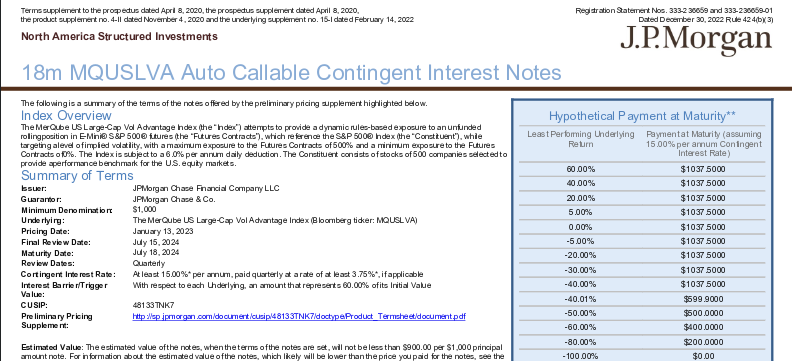
Goodspeed to other types of documents!
The example JSON files are available at JSONs folder.
The Postman project is available.